While Windows and Linux often dominate the conversation in Enterprise IT, macOS remains a staple across creative industries, software engineering teams, and executive environments. Fortunately, if you understand the core mechanics of one operating system, navigating any other becomes intuitive.
Here is a breakdown of the core components, interface elements, and administrative navigation points of Apple’s macOS from an IT support perspective.
1. The Core Desktop Interface
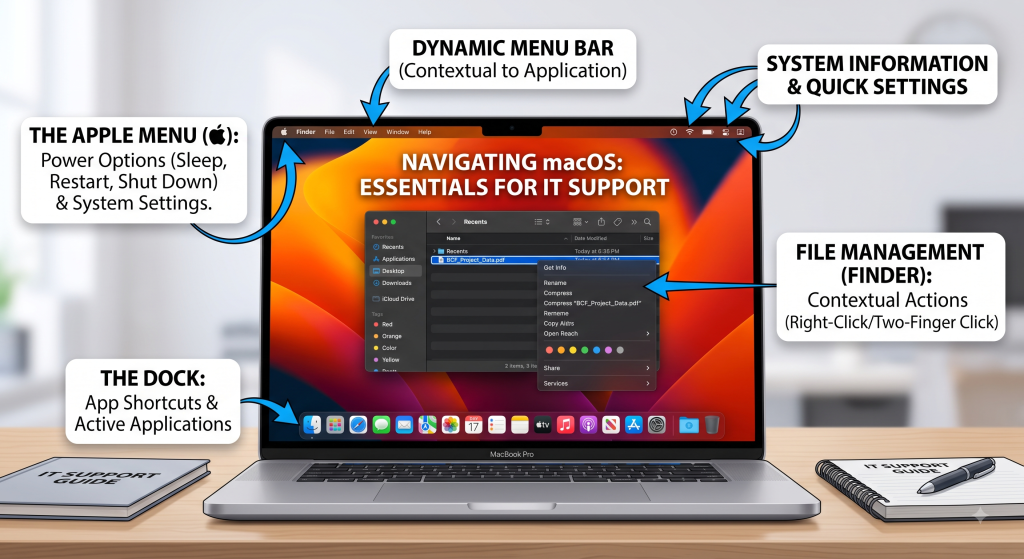
Apple structures its user environment around three primary visual anchors:
- The Dock (Bottom Screen): Houses shortcuts to applications, active programs, downloaded files, and the Trash. It serves as the main application launchpad for end users.
- The Menu Bar (Top Screen): Divided into two core sides:
- Top-Left (Contextual Controls & Apple Menu): Displays the static Apple Icon alongside dynamic menu options that change depending on which application is currently active.
- Top-Right (System Status & Quick Settings): Contains system monitors including the system clock, battery percentage (on laptops), Wi-Fi/Network status, Control Center, and notification toggles.
2. Managing System Operations & Settings
Clicking the Apple Icon in the top-left corner opens primary hardware-level controls, including:
- System Power States: Sleep, Restart, and Shut Down.
- System Settings / System Preferences: The centralized hub for device management and configuration.
Common System Administration Tasks
Inside System Settings, IT administrators and support specialists manage essential workstation configurations:
- Peripherals & Input Devices: Reversing scroll direction, modifying trackpad gestures, or adjusting key repeat rates.
- User Management: Adding, configuring, or removing local user accounts and administrative permissions.
- Hardware Integration: Setting up corporate network printers, managing display arrangements, and pairing Bluetooth devices.
- Personalization & Security: Changing lock screen settings, screen savers, and setting security preferences.
3. File Management with Finder
In macOS, file organization and directory navigation are handled entirely through Finder.
- Switching Context: Clicking anywhere on the desktop shifts the top menu bar to Finder, allowing quick access to file-level configurations.
- Contextual Menus (Right-Clicking):
- On standard mice: Right-click on any file or folder to view metadata, change permissions, or perform actions.
- On trackpads: Use a two-finger tap/click to open the same secondary contextual menu.
- Navigation: Open a Finder window to browse local disk storage, connected external volumes, network shares, and cloud sync drives.