For IT professionals, managing operating systems isn’t just about knowing what’s new, it’s about knowing what has changed, what requires upgraded hardware, and what remains rock-solid across environments.
While Windows 11 introduces a modernized design and tightened hardware requirements, Windows 10 remains widely deployed across enterprise and SMB environments. Understanding how these two platforms stack up is essential for endpoint management, user support, and deployment planning.
1. UI & Design Philosophy
The most immediately visible change in Windows 11 is its refined design language.
- Taskbar & Start Menu Alignment: Windows 10 keeps the Start button and Taskbar icons anchored to the bottom-left corner. Windows 11 centers them by default (though they can be moved back via Group Policy or settings).
- Aesthetics: Windows 11 adopts rounded corners, pastel accents, acrylic translucency, and a streamlined layout aimed at reducing visual clutter.
2. Feature Comparison Matrix
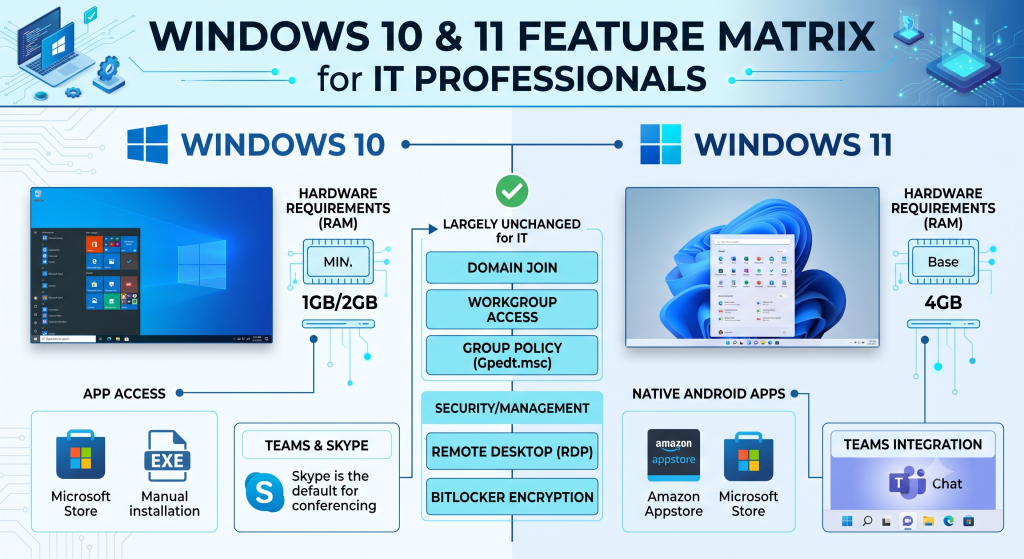
| Feature | Windows 10 | Windows 11 | IT Impact / Notes |
| Minimum RAM | 1 GB (32-bit) / 2 GB (64-bit) | 4 GB (64-bit only) | Windows 11 enforces higher hardware baselines (including TPM 2.0). |
| App Support | Win32 & Microsoft Store | Win32, Microsoft Store & Native Android Apps | Windows 11 supports the Windows Subsystem for Android (WSA). |
| Virtual Desktops | Functional, but less intuitive | Enhanced & prominent | Easier to isolate work and personal workspaces directly from the taskbar. |
| Collaboration | Skype pre-loaded / Teams manual | Teams deeply integrated | Teams Chat is integrated directly into the Taskbar in Windows 11. |
| Widgets | Live Tiles in Start Menu | Dedicated Widgets Board | Accessible via Taskbar; can be managed or restricted via GPO. |
| Touch & Pen Input | Standard touch support | Haptic Feedback & Gesture Enhancements | Adds subtle vibration cues for compatible digital pens. |
3. Core Administrative Services & Settings
From a systems administration perspective, the core infrastructure underlying management and security remains remarkably consistent between both versions:
Domain & Workgroup Joining
- Domain Access: The process for joining an Active Directory domain remains identical. Administrators can still join via System Properties (
sysdm.cpl) or through the modern Settings app. - Workgroup Access: Peer-to-peer Local Area Network (LAN) management via Workgroups operates under the exact same mechanics in both versions.
Management & Security Tools
- Group Policy (
gpedit.msc): Local and Active Directory Group Policy management remains intact. Administrative Templates (.admx) continue to be the primary method for enforcing policy across managed fleets. (Note:gpedit.mscremains exclusive to Pro, Enterprise, and Education editions). - Remote Desktop Protocol (RDP): Connecting to remote machines functions identically. In both OS versions, hosting an RDP session requires a Pro or Enterprise license.
- BitLocker Drive Encryption: Full-disk encryption mechanics are unchanged. BitLocker management, key escrow to Active Directory or Microsoft Entra ID (Azure AD), and TPM integration work seamlessly across both platforms (Pro/Enterprise required).
Key Takeaways for IT Admins
- Dual-OS Management is standard: Most enterprise environments will run Windows 10 and Windows 11 side-by-side until legacy hardware reaches End of Life (EOL).
- Evolution, not revolution: While the user experience (UX) has shifted significantly, the underlying administrative tools—Gpedit, Domain Join, BitLocker, and RDP—remain familiar and fully functional.
- Hardware Readiness: Windows 11’s 4 GB RAM minimum and strict CPU/TPM requirements make auditing your fleet’s hardware specs a mandatory first step before planning any migration.