Step 1: Choosing the Right Operating System
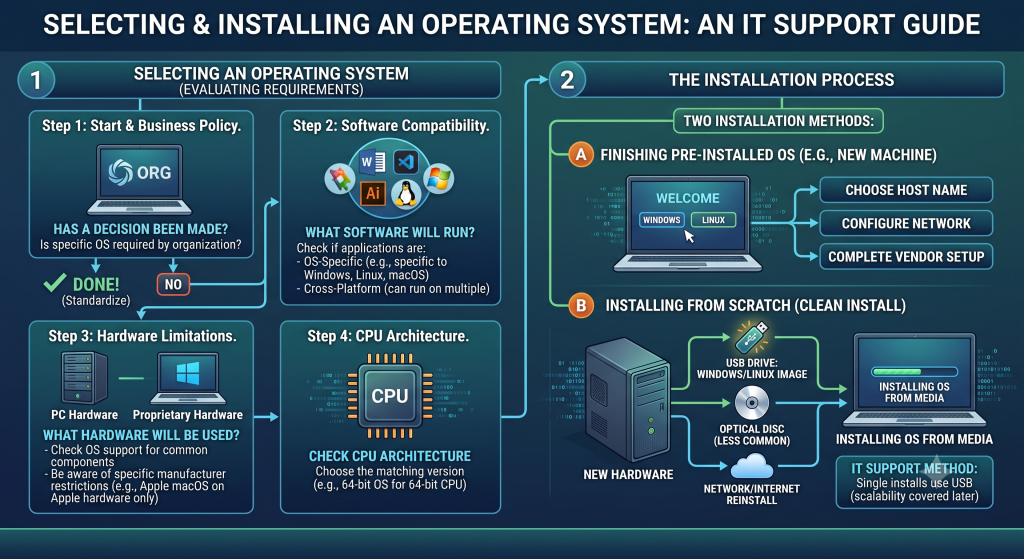
Before installing anything, evaluate your requirements by asking three key questions:
1. Has the decision already been made?
- Business Requirements: Organizations usually standardize their OS based on the specific applications, enterprise tools, and services they rely on.
- If your organization specifies an OS, your choice is already made.
2. What software needs to run on the device?
- OS-Specific Applications: Many software programs are designed to run exclusively on a particular operating system (e.g., Windows, macOS, or Linux).
- Cross-Platform Software: Some applications can run across multiple operating systems. Ensure the required software is compatible with the OS you choose.
3. What hardware will be used?
- Hardware Limitations: While modern operating systems support a wide range of hardware, some manufacturers (like Apple) restrict their OS to run exclusively on their own proprietary devices.
- CPU Architecture (32-bit vs. 64-bit): Ensure your OS matches your hardware architecture. If you have a 64-bit CPU, install a 64-bit OS to utilize your processor effectively.
Step 2: Understanding the Installation Process
Once you’ve selected the OS, there are two primary ways to set it up on a device:
Option A: Finishing a Pre-Installed OS
Many consumer and enterprise computers come with an OS pre-installed by the vendor. When you boot up a new machine, you simply complete the setup process by configuring basic settings, such as:
- Assigning a hostname (computer name).
- Setting up network configurations.
- Creating primary user accounts.
Option B: Installing from Scratch (Clean Install)
If you are installing an OS on blank or formatted hardware, you must boot from external installation media:
- USB Flash Drives: The most common and practical method. Vendors (like Microsoft) provide bootable media creation tools, and Linux distributions can easily be loaded onto standard USB drives.
- Optical Disks (DVDs): Traditional physical installation media, though less common on modern hardware without optical drives.
- Network / Cloud Reinstalls: Reinstalling or deploying the OS directly over the internet or a local network.
Note on Scalability: While setting up a single device using a USB drive works fine for one-off tasks, managing deployments across dozens or hundreds of machines requires automated network deployment solutions.