The single worst form of documentation is no documentation at all. When a technician spends three hours untangling a bizarre bug and fails to write down the solution, the entire team is forced to reinvent the wheel when that issue resurfaces.
Taking a few minutes to write clear, actionable notes saves countless hours for you, your colleagues, and your end users.
Process Documentation: Knowledge Bases and SOPs
Process documentation serves as the standard operating procedure (SOP) for issues that recur across multiple users.
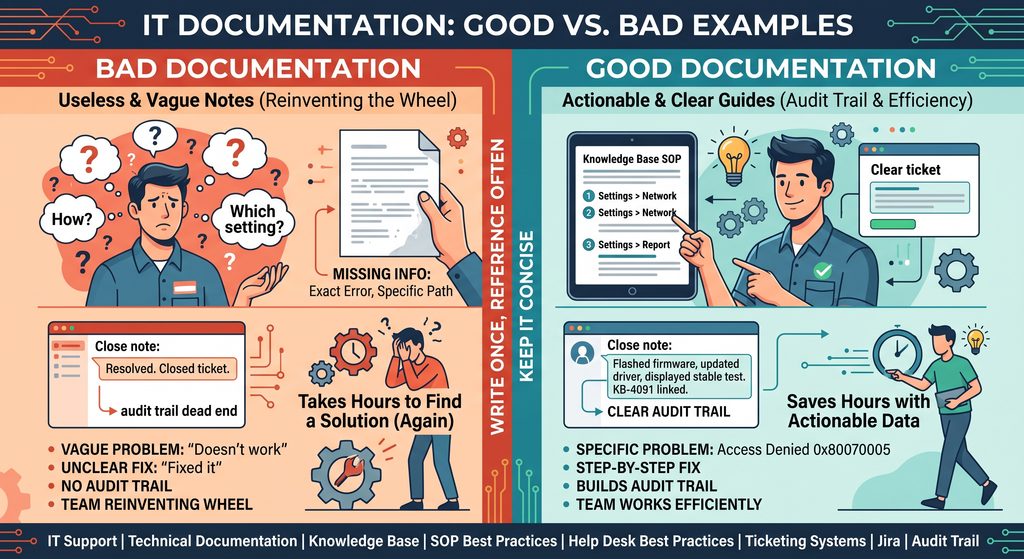
The “Not-So-Good” Example:
Problem: User couldn’t access network share.
Fix: Reconfigured their permissions and mapped the drive.
- Why it fails: It is too vague. It does not state which network drive failed, what permissions were missing, which group policy applied, or the exact path used to remap the share. A technician reading this is left with more questions than answers.
The “Good” Example:
Problem: User received “Access Denied (Error 0x80070005)” when attempting to open \\corp-fs01\Marketing.
Root Cause: The user was missing the Sec-Marketing-ReadWrite Active Directory security group after a department transfer.
Resolution Steps:
- Open Active Directory Users and Computers (ADUC).
- Navigate to OU=Departments -> OU=Marketing -> Users.
- Add the user object to Sec-Marketing-ReadWrite.
- On the user’s workstation, run gpupdate /force in CMD and remap drive M: pointing to \\corp-fs01\Marketing.
- Why it succeeds: It provides an exact problem statement, explains the root cause, and outlines sequential, step-by-step instructions that any technician can follow effortlessly.
Ticket and Bug Documentation: Building an Audit Trail
You don’t need to write an entire manual inside every support ticket. Instead, document a process once in your knowledge base, and use your ticketing system (Jira, Bugzilla, Redmine) to build a clear audit trail of what was diagnosed and what worked.
The “Useless” Ticket Close Note:
“Resolved. Closed ticket.”
- The flaw: If the user reopens the ticket or a teammate searches historical records for identical symptoms, this ticket provides zero diagnostic value.
The “Actionable” Ticket Close Note:
Reported Issue: Laptop display flickers black intermittently when connected to external monitors via the USB-C dock.
Troubleshooting Performed:
- Replaced HDMI/DisplayPort cables (Issue persisted).
- Tested monitor on a known-good dock (Worked fine).
- Verified dock firmware was two versions out of date.
Resolution: Flashed dock firmware to v1.4.2 and updated the Intel Display Driver to v31.0.101. Display remained stable during a 20-minute stress test. Knowledge Base article #KB-4091 linked.
Rules for Writing High-Impact IT Documentation
- Write Once, Reference Often: Create detailed SOPs for recurring problems, then simply link the KB article inside daily resolution tickets.
- Keep It Concise: Technical documentation needs clear steps, specific paths, exact error codes, and parameters not narrative fluff.
- Make It Scannable: Use numbered steps for execution and bold text for navigation paths (e.g., Settings > Network & Internet > Advanced network settings).