Whether supporting users over chat, phone, email, or in person, every technical support session follows a distinct lifecycle. Mastering each phase ensures that issues get resolved quickly while leaving the user feeling heard, respected, and supported.
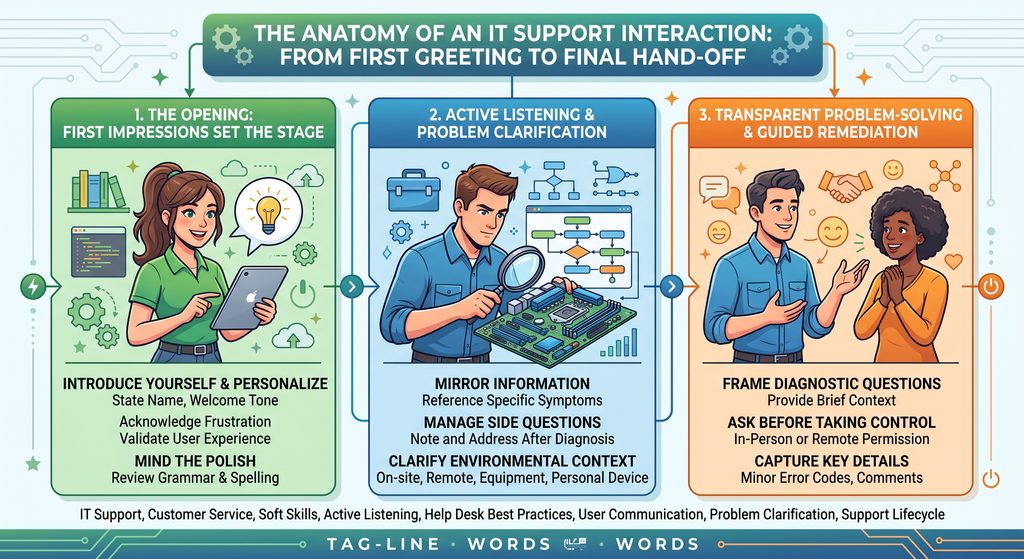
1. The Opening: First Impressions Set the Stage
The initial seconds of an interaction determine its trajectory. While you might manage a queue of dozens of tickets, this single issue is the user’s primary blocker.
- Introduce Yourself and Personalize: State your name, maintain a welcoming tone, and integrate any context already provided in their ticket.
- Acknowledge Frustration: If a user expresses annoyance about a breakdown, validate their experience before diving into the technical details.
- Mind the Polish: In written channels, review grammar and spelling before sending messages to maintain credibility.
Cold Opening:
“What is wrong with your computer?”
Empathetic Opening:
“Hi Gail, sorry to hear you’re running into trouble with your laptop today. Let’s work together and get this sorted out.”
2. Active Listening and Problem Clarification
Never assume you know what the user means by vague terms like “my computer isn’t working” or “the internet is broken.” Clarifying the scope early prevents wasted troubleshooting down incorrect paths.
- Mirror Information: Reference specific symptoms the user mentioned to confirm alignment.
- Manage Side Questions: If the user asks multiple questions while you are diagnosing, let them know you’ve noted them and will address each one after checking the current logs.
- Clarify Environmental Context: Determine whether the user is on-site, remote, using company equipment, or working from a personal device before running network or access diagnostics.
3. Transparent Problem-Solving and Guided Remediation
Asking questions without explaining why can make users feel interrogated or anxious.
- Frame Your Diagnostic Questions: Provide brief context (e.g., “To help me pinpoint which network service is failing, I need to check two quick settings with you.”).
- Ask Before Taking Control: When troubleshooting in person, ask permission before touching a user’s device. When working remotely, explain the purpose of scripts or commands before asking the user to run them.
- Capture Key Details: Pay close attention to passing comments or minor error codes mentioned by the user—they frequently reveal the root cause.
4. The Closing: Clear Next Steps and Confirmation
The final two minutes shape the user’s lasting impression of the support experience. Even a technically flawless fix feels incomplete if the user is left uncertain about what happened.
- Reiterate the Resolution: Summarize what caused the failure and what action corrected it.
- Outline Follow-Up Steps: Clarify if a reboot is needed later, when pending patches will apply, or how to reach out if symptoms return.
- Confirm Complete Resolution: Always ask if there is anything else you can assist with before closing the ticket.
Interaction Checklist
- Personalize the greeting and validate user frustration.
- Clarify the exact problem statement before troubleshooting.
- Explain the purpose behind diagnostic questions and system commands.
- Summarize the solution and outline next steps before closing.