When a technical issue appears out of nowhere, jumping straight into generic troubleshooting steps often leads to wasted time. One of the most reliable diagnostic techniques in an IT specialist’s toolkit is known as “Following the Cookie Crumbs.”
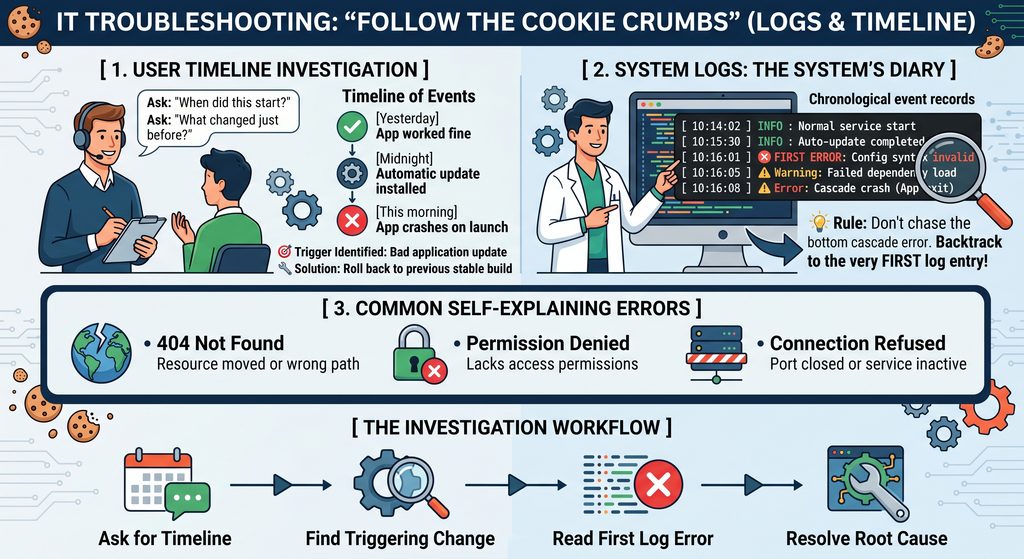
This approach involves pinpointing the exact moment an issue began and tracing events forward from that point. Asking one simple question “When did this problem start?” often reveals the exact change that triggered the failure.
The Power of Timeline Investigation
Consider the difference between making assumptions versus tracing the timeline of an issue:
The Guesswork Approach:
User: “My favorite app crashes immediately whenever I try to open it.”
Technician: “Let’s uninstall and reinstall it.”
(Result: The app is reinstalled, but it continues to crash because the root cause was not investigated.)
The Timeline Approach:
User: “My favorite app crashes immediately whenever I try to open it.”
Technician: “When did you first notice this happening? Did anything change right before it started crashing?”
User: “It worked fine late last night, but early this morning it installed an automatic update, and now it won’t launch.”
Technician: “That points directly to a bug in the recent release. Let’s roll back to the previous stable version.”
(Result: The issue is resolved quickly by focusing on the event that triggered the failure.)
System Logs: The Operating System’s Diary
While end-users provide helpful context about what they remember, systems keep precise historical records. System logs record timestamped events, state changes, warnings, and errors as they happen.
When diagnosing complex failures:
- Match the Timestamp: Correlate the exact time the failure occurred with log entries from that specific window.
- Trace the Cascade: A single underlying failure often triggers dozens of secondary errors. Instead of troubleshooting every individual warning at the bottom of a log file, scroll up to identify the first error in the sequence.
- Fix the Root Cause: Resolving the initial fault naturally clears the cascade of downstream errors.
Common Self-Explaining Errors
Not every issue requires deep log analysis. Standard status codes and system messages frequently state the issue directly:
- 404 Not Found: The requested web page or file has been renamed, moved, or deleted.
- Permission Denied: The executing user account lacks sufficient privileges to access the targeted file or directory.
Summary Checklist for Tracing Issues
- Establish the baseline: Find out when the system was last operating normally.
- Identify recent changes: Look for software updates, permission modifications, configuration edits, or hardware changes.
- Read the logs chronologically: Locate the earliest logged anomaly before downstream errors cloud the diagnosis.